The Plunge

An excerpt from my my diary, from the 13th of February, 2024.
My initial thoughts about switching, was that it would be a bit over my head until I changed my hardware. I have some atypical peripherals, but my biggest concern was my NVIDIA graphics card. I had heard that this was a company notorious for being unfriendly with GNU/Linux development, and that people have problems using their components. I had my heart set on some hypothetical time in the future, where I’d get a new PC with AMD components, and hop to GNU/Linux Mint Debian Edition. I started looking into a distribution I heard about called Pop!_OS however, because it seemed like it might be possible for me to install it easily on my current system, without modification. It’s based on Ubuntu—which I had heard rather mixed things about—but it seemed to deviate a bit in certain places, like utilizing flatpak containers, and having its own shop. I heard Snap was bad I guess; also, proprietary? To reiterate, I have no idea what I’m doing. Anyway, the most important thing, is that this OS has a compiled bundle of proprietary NVIDIA drivers directly in the ISO. I’m not exactly thrilled by the prospect of running to non-free software to get my free software running, but surely some binary blobs are way farther up the freedom ladder, than sitting around twiddling my thumbs on Windows 10 forever. So I decide this is my calling; let’s get it going—today.
Alright, instructions seem simple enough; just download the OS, some free software to create a live disk (balenaEtcher), and reboot to freedom. The first steps did work out that way; popped out my favorite 16gb stick, let Etcher do its thing, and then went to reset the PC. After some silliness with my bios settings, I get to the install screen. Oh man is it slow. I chalk it up to the fact it’s on a USB stick, and just vibe for a bit chugging through the install wizard. Finally, the time comes when it asks me if I want to do a normal or custom install, and of course I want to do a custom one, because I’m a very cool guy. The reality is, I wasn’t in the mood to format one of my storage drives to install a small operating system. I figured I’d simply make a 250GB partition on a drive that Windows wasn’t on, and call it a day. I’ve heard trying to install on the same drive as an existing operating system can cause problems, and Windows could just mess with the boot table which, well—that doesn’t sound like a fun time.
I’m told to make a /home/ directory, which defaults to formatting as...EXT4? Can’t say I’ve ever formatted as anything beyond FAT32 or NTFS before, and I don’t really know if it will be cross compatible, but I suppose that doesn’t matter much. The goal is really just to have a partition large enough to install applications, and handle temporary files. My personal data will be on all my other drives anyway, to prevent issues. Okay, so great! I make the partition, I ask it to use it, I get the option to start the install, and then...it fails, after some files try to copy over. I try again, it fails, and again, then reboot the thing—no dice. Okay, well maybe if I look at the very scary typical clean install button (please don’t format my personal files, god there surely has to be multiple confirmations right) something will come up. It does give me a lead though, all my SSDs are over 2TBs, and apparently that’s a problem. If I try to work around it by mounting them, I get a no object for D-Bus interface error.
Alright, well I at least have some text I can copy, and I figure something out! Apparently, I need to utilize a mode called UEFI in my bios settings, in order to install on drives over 2TB, instead of legacy boot options. I hop into the settings, see a way to force UEFI only and think, “yeah that’s a great idea, let’s close compatibility so it has to go through UEFI,” except now my USB stick isn’t detected at all anymore. Well, crap. Okay, maybe I should grab my more recent 64GB one, which I know is USB 3, and surely should go into forced UEFI no problem right? Boot back into Windows, reopen Etcher, nuke the drive, and get it going, and it is going! Things load up, screen flashed once—oh, back to the command line. Pop!_OS instance 5 initiated, instance 20, 45, 70, 100...okay, I think the routine is busted here.
Ctrl+Alt+Del—oh, it fails far before there now despite being a live cd, then again, so I power down the whole thing. Guess something failed with the Etching software? Regardless, I put my settings to on instead of forced, and re-enable some unrelated legacy things. Maybe if the other drives worked properly, I could salvage something. Maybe install somewhere else and move it later? I dunno. But now it decides there are two boot options for the drive, where one is actually UEFI! Okay great, it’s running! Oh god, the command line is huge now, but I’m in, and I can mount the drives! So anyway, back to custom, and I realize something absurd must’ve happened. In tinkering with the on and off boxes for trying to install the OS, I think I must‘ve managed to idiot savant my way through some fail safe. Apparently, I need to at minimum have two partitions for my install, a, /home/, and a /boot/. I make the second partition, I define them as the partitions to use, and timidly hit the install button expecting failure. Installation...successful! Well holy hell, let’s get this show on the road then!
I restart, I have my boot configured incorrectly so it immediately threw me into Windows, I restart again and use the boot menu—ah two Pop!_OS choices! No, I don’t mean one from the stick, they’re both on the drive, but one says UEFI, so I wager it’s just different compatibility for booting? Had enough trouble with not using UEFI, we’re clicking the UEFI version. Wow, that boots fast, very sleek! Now comes my next biggest fear: not having any ability to use my audio equipment. It’s been suspiciously quiet through the entire install, but in actuality, there really were just no sounds playing at all. Sure enough I head to the sounds and, well actually, how the heck do I even change audio devices? Apparently, it’s in a settings context menu; fair enough, and all my devices are surprisingly just already there.
Main speakers, check; external DAC/amp, check. My XLR USB mic input I had to install drivers on Windows for? Yup, working out of the box. Huge weight off my chest there, as that stuff was not cheap, and I use it very often. Next hurdle: I need my VPN. Technically, I could scrap my current VPN provider if I had to, but they have done very well by me with their old lifetime plan, so I’d vastly prefer to keep them. I figured considering it’s a no logs VPN service, that a GNU/Linux package would be far more likely than an average proprietary service. I was right, though it was on their website, as opposed to in Pop’s special store. Easy install, quick to connect and—actually, wow, that connection was way faster than I’m used to. It usually takes like several seconds, yet this gets it done in less than one. Double checked the IPs on web searches because it was so fast, but it’s totally working as expected. Again, another good sized hurdle taken care of rather easily.
Okay, so now I need to resolve the issue of password management. I know there are a number of free software projects based around KeePass, so I’m expecting such a project to exist for GNU/Linux. KeePassXC comes to my rescue on the shop, it works excellently, and now I can begin logging into all of my web services and extensions I need on Firefox. Services are going well, everything seems fine, even watched some videos for good measure! I checked out my files, everything seems good, though I’m not the biggest fan of having to mount my internal SSDs every time I boot my PC, and them being icons on my task bar. Speaking of that taskbar, it’s kind of a big boy, so I guess I should fiddle with the settings. Turns out it’s very configurable; I was going to do a full tiny bar, but then I realized I can hide the taskbar on hover, and went back to the rounded floating one at a small size. Finally, screen real estate is mine again! I can also have it on both monitors, yes please, and it’s very snappy. Now there’s just one more thing to do before I call it a day, I gotta open the terminal and do that thing. All the cool kids show off their operating system with that built in program neofetch! Oh wait, it’s not built in? I just thought because well...okay, I guess it’s not like I can’t just sudo apt get neofetch. Oh hey there we go, it worked! Alright, time to take a screenshot!
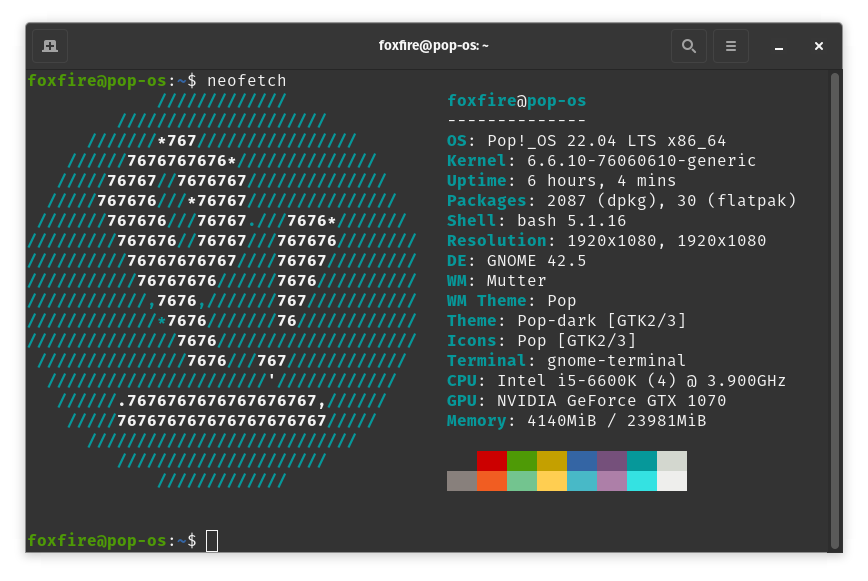
“Baby's first Neofetch.”
All writing is licensed under CC-BY-ND with attribution to Foxfire. The FSF recommends this license for opinion pieces.